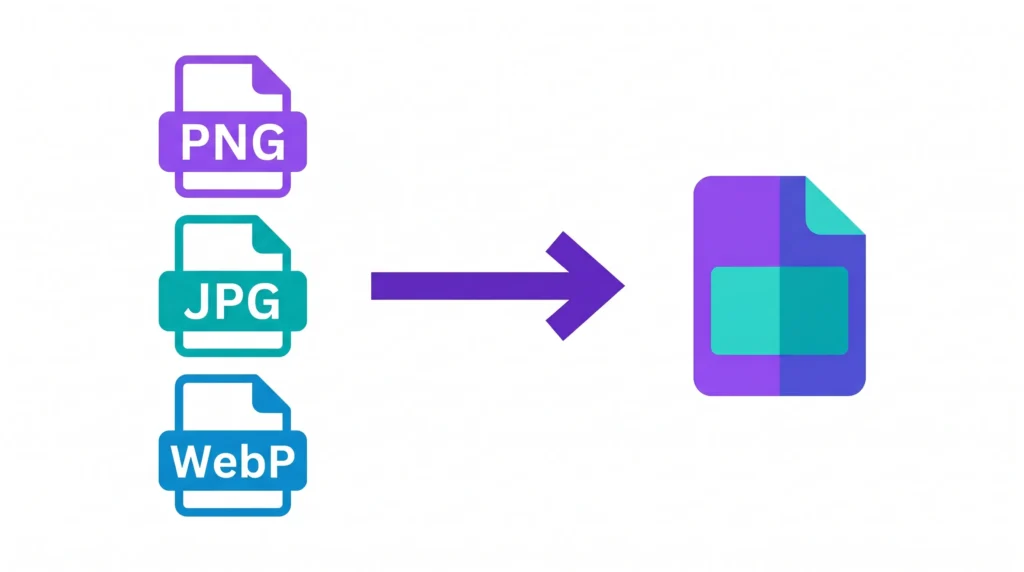
You’ve got 40 product photos. All PNG. Your website needs JPG. And you’re not about to convert them one by one.
That’s exactly the problem bulk image conversion solves — and you don’t need Photoshop, a paid subscription, or even an account to do it. This guide shows you how to convert multiple images at once, completely free, right from your browser.
Why Bulk Converting Images Actually Matters
Most people think image format is a minor detail. It’s not.
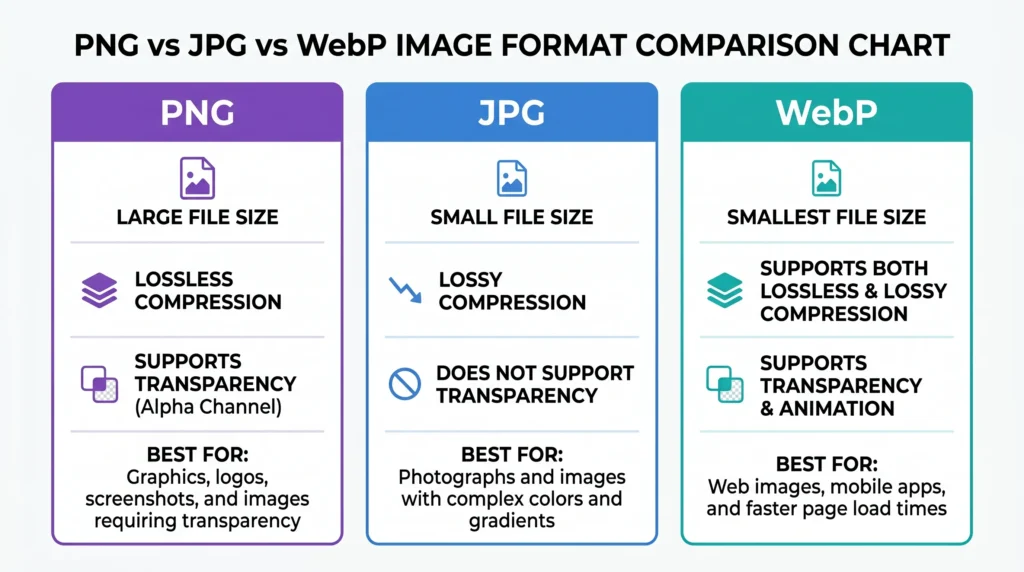
The format you use directly affects how fast your website loads, how much storage you use, and whether your images look sharp on all screens. Here’s what each format actually means:
- PNG — High quality, large file size. Good for logos and graphics with transparent backgrounds.
- JPG — Smaller file size, slight quality loss. Best for photos and product images on websites.
- WebP — Modern format, smallest size, great quality. Preferred by Google for page speed.
- PDF — Document format. Sometimes images need to be bundled into a PDF for sharing.
The problem is most people are stuck with whatever format their camera, phone, or design tool exports. A bulk converter fixes that in seconds.
What the AIToolsE Bulk Image Converter Can Do
Before jumping into the steps, here’s what the tool actually supports:
| Feature | Details |
|---|---|
| Input formats | PNG, JPG, JPEG, WebP, GIF, BMP, TIFF |
| Output formats | JPG, PNG, WebP, PDF |
| Bulk upload | Yes — multiple files at once |
| Signup required | No |
| Cost | Free |
| Works on mobile | Yes |
No installation. No account. No watermarks. Files are processed in your browser and are not stored on any server.
Step-by-Step: How to Convert Images in Bulk
This takes about two minutes for a full batch of images.
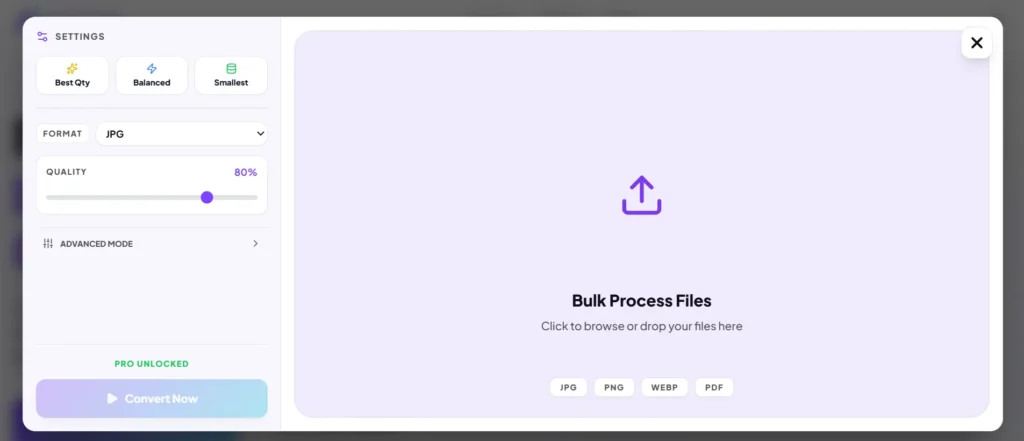
Step 1 — Open the converter Go to imageconverter.aitoolse.com. The tool loads instantly — no signup screen, no popups asking for your email.
Step 2 — Upload your images Click the upload area or drag and drop your files directly. You can select multiple files at once from your folder. PNG, JPG, WebP — it accepts them all.
Step 3 — Choose your output format Select what format you want to convert to. If you’re converting for a website, JPG or WebP are usually the best choices. For graphics with transparent backgrounds, stick with PNG.
Step 4 — Convert Hit the convert button. The tool processes all your files simultaneously. Depending on the number of files, this usually takes 10-30 seconds.
Step 5 — Download Download each converted file individually or grab them all at once as a ZIP. Done.
When Should You Actually Use a Bulk Converter?
Here are the most common situations where this saves real time:
Running an online store Product images from your supplier come in PNG. Your platform needs JPG under 500KB. Converting 60 images one by one is not realistic. Bulk convert, done.
Managing a blog or website You write a post with 8 images. All from your phone, all 3-4MB each. Google penalizes slow pages. Convert them all to WebP, drop the file size by 70%, and your page speed score improves immediately.
Social media content in batches You shoot 30 photos for the week’s Instagram content. Resize and convert the entire batch at once rather than editing each one.
Sending documents Someone needs your images as a PDF. Upload them all and export as a single PDF — no need for Adobe Acrobat.
JPG vs PNG vs WebP — Which Should You Convert To?
This is the question most people get wrong.
Convert to JPG when:
- You’re uploading product photos to an e-commerce site
- You need the smallest possible file size and transparency isn’t needed
- You’re sending images by email
Convert to PNG when:
- Your image has a transparent background (logos, icons, stickers)
- You need pixel-perfect quality for print or design work
- You’re converting screenshots
Convert to WebP when:
- You’re uploading images to a website and want the best performance
- You want smaller file size than JPG but better quality
- Your platform supports WebP (WordPress, Shopify, most modern sites do)
Quick rule: Website → WebP. Photos to share → JPG. Logos and graphics → PNG.
Pro Tips for Better Results
Don’t over-compress JPGs. Most tools let you set quality level. Anything above 80% is visually identical to the original. Go below 70% and you’ll notice it.
WebP is not supported everywhere. Old email clients and some apps still struggle with WebP. For sharing via email or WhatsApp, stick with JPG.
Batch by format, not by project. If you have a mix of logos and photos, separate them before converting. Logos should be PNG, photos should be JPG or WebP.
Always keep your originals. Before bulk converting, keep a copy of the original files. Conversion is usually lossy for JPG — you can’t perfectly reverse it.
Frequently Asked Questions
How many images can I convert at once?
You can upload and convert multiple files in a single batch. The tool handles the processing in your browser so there's no server queue to wait in.
Does converting from PNG to JPG reduce quality?
Yes, slightly. JPG is a lossy format, which means some image data is removed during compression. For most practical uses — websites, social media, print — the difference is not visible at 80%+ quality settings.
Is my data safe? Are my images stored?
The conversion happens in your browser. Your images are not uploaded to or stored on any external server.
Can I convert images to PDF?
Yes. The tool supports PDF as an output format. Upload your images and select PDF as the output to combine them into a document.
Does it work on iPhone and Android?
Yes. The tool is browser-based and works on any device — phone, tablet, or desktop.
Conclusion
Converting images in bulk used to mean buying software or learning Photoshop actions. Now it takes about two minutes online, for free, on any device.
If you manage a website, run social media accounts, or work with product photography — a bulk image converter is one of those tools you use more often than you expect.
Try the free bulk image converter now → imageconverter.aitoolse.com