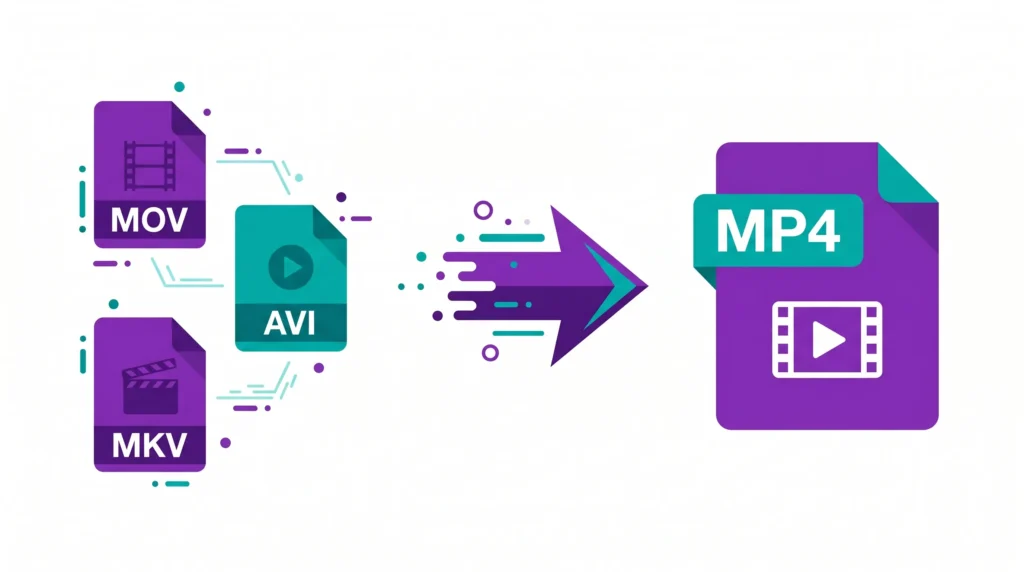
You recorded a video on your iPhone. It saved as a MOV file. The platform you need to upload it to only accepts MP4.
You Google “video converter” and every result asks you to install software, create an account, or pay for a subscription.
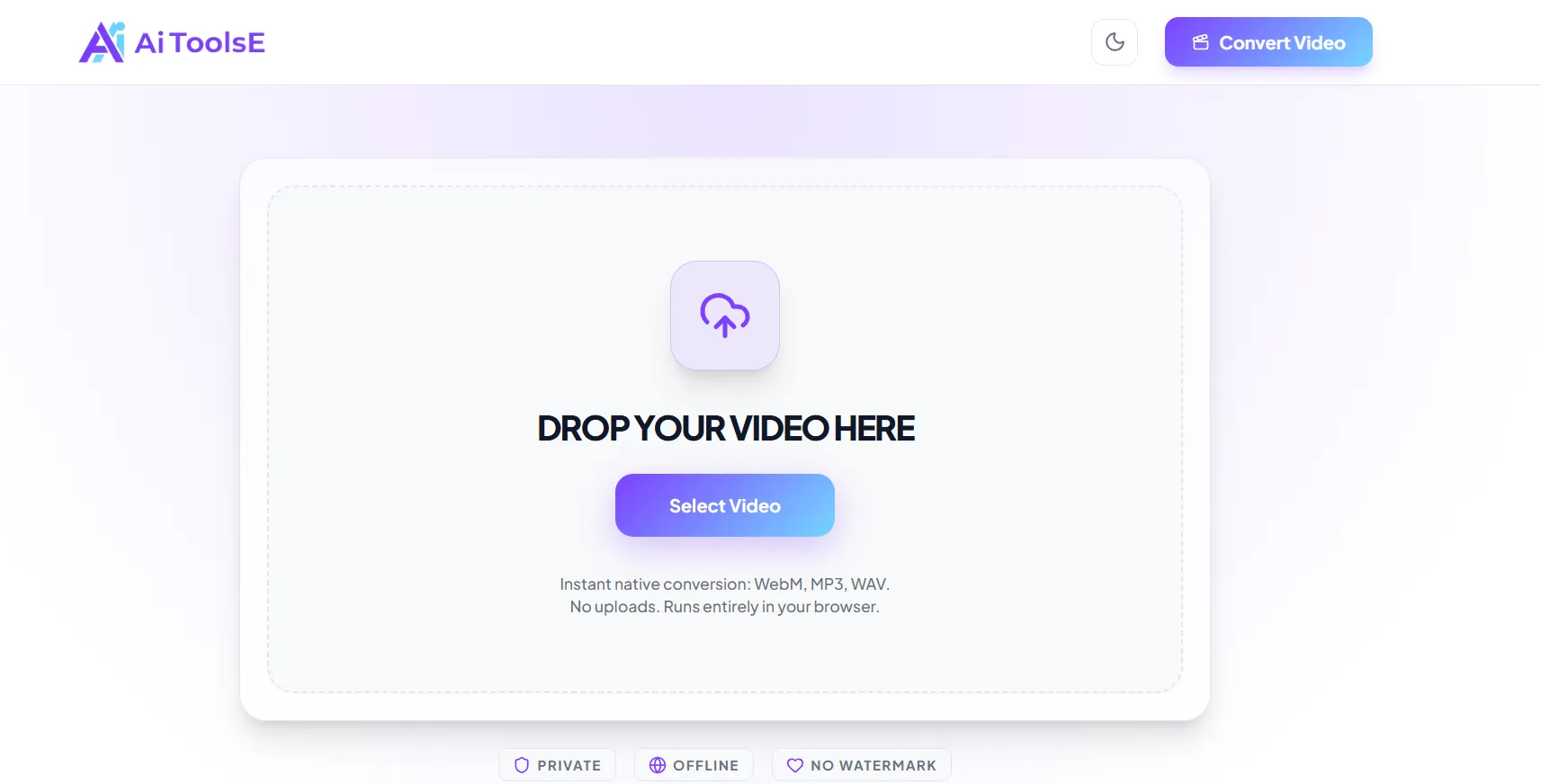
There’s a better way. The AIToolsE free video converter runs entirely in your browser. No installation, no account, no file upload to any external server. Your video stays on your device the whole time — and the conversion is completely free.
Why Your Video Format Actually Matters
Most people assume a video is just a video. The format it’s saved in determines where you can use it, how large the file is, and whether the platform you’re uploading to will even accept it.
Here’s what each format actually means:
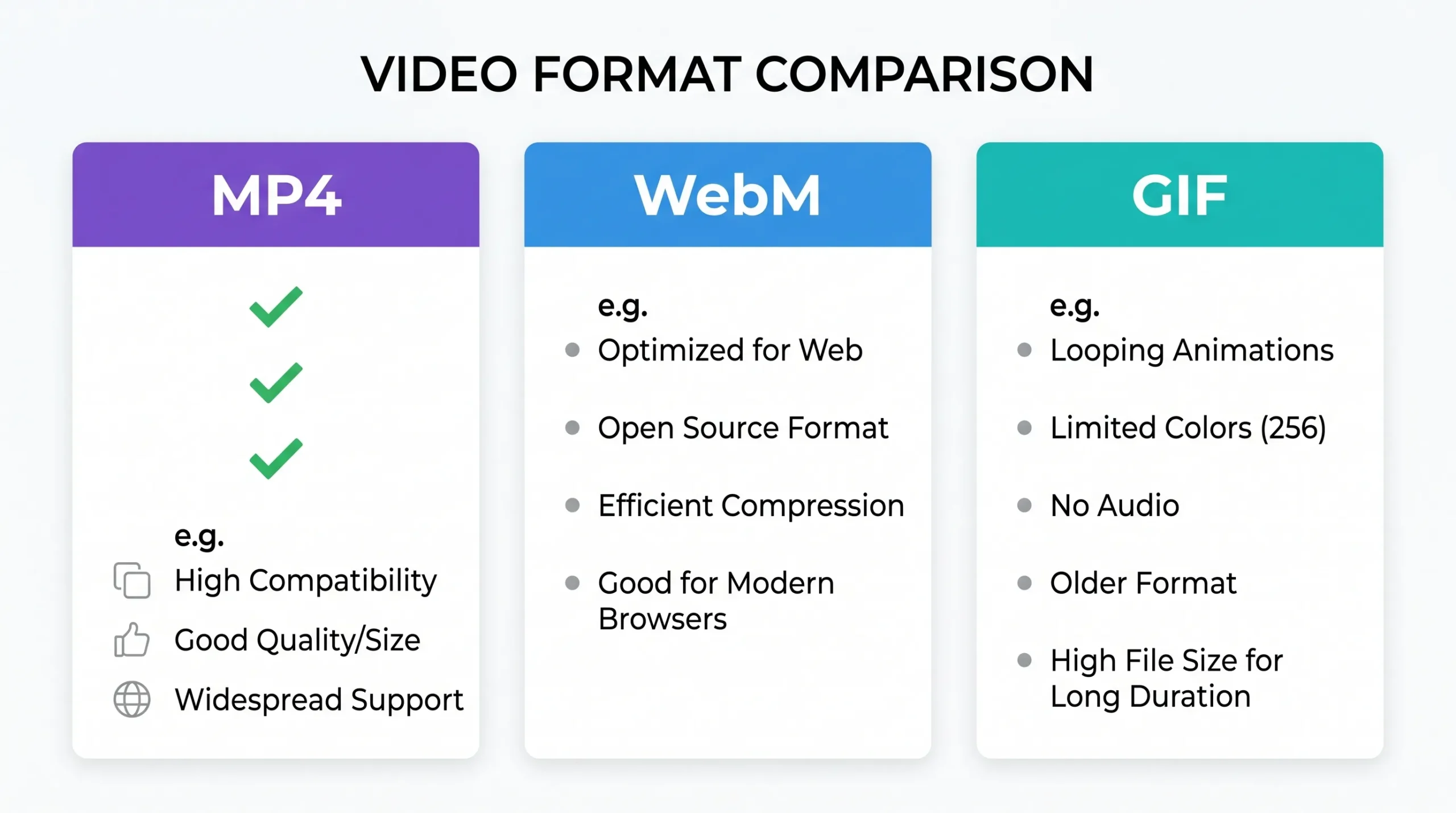
- MP4 — The most widely accepted format on the internet. Works on YouTube, Instagram, TikTok, Facebook, WhatsApp, and almost every device. Always your safest choice.
- MOV — Apple’s format. Great quality but large file size. iPhones record in MOV by default. Android, Windows, and most web platforms struggle with it.
- AVI — An older Microsoft format. Very large files. Rarely needed in 2026.
- MKV — Popular for high-quality storage. Great for movies but rejected by most social platforms.
- WebM — Modern and web-optimized. Smaller than MP4, perfect for embedding videos on websites.
- GIF — Short looping animations. No sound. Used in messages, social media, and blog posts.
The problem most people hit: their device records in one format, the platform wants another. That’s exactly what a video converter fixes.
What the AIToolsE Video Converter Supports
| Feature | Details |
|---|---|
| Input formats | MP4, MOV, AVI, MKV, WebM, FLV, WMV |
| Output formats | MP4, WebM, GIF |
| File processing | Done in your browser — private |
| Signup required | No |
| Software to install | None |
| Cost | Free |
| Works on mobile | Yes |
The privacy difference matters. Most free video converters upload your file to their server, process it there, then send it back. This tool converts directly in your browser. Your video never leaves your device.
How to Convert a Video — Step by Step
Step 1 — Open the converter
Go to video-converter.aitoolse.com. No loading screen, no signup prompt waiting for you.
Step 2 — Upload your video
Click the upload area or drag your video file directly onto the page. The tool accepts MP4, MOV, AVI, MKV, WebM, FLV, and WMV.
Step 3 — Choose your output format
Select what format you need. For most situations, MP4 is the right answer. For websites, WebM. For short clips to share in chats, GIF.
Step 4 — Convert
Click convert. Processing happens using your device’s own resources — no server queue. A 100MB file typically converts in under a minute.
Step 5 — Download
Click download. Your converted file saves directly to your device. Done.
When You Actually Need a Video Converter
Uploading to social media
Instagram Reels, TikTok, and YouTube all prefer MP4. If your video is MOV (from iPhone) or MKV, convert to MP4 first. Uploads become faster and quality is preserved.
Sending by email or WhatsApp
MOV and AVI files are often too large and don’t always play on the recipient’s device. Convert to MP4 — file size drops significantly, playback works everywhere.
Embedding video on a website
MP4 works everywhere, but WebM is smaller and loads faster. If you’re adding a video to a blog post or landing page, WebM gives you better page speed scores.
Creating GIFs for social media
Short tutorial clips, reaction snippets, product demonstrations — convert a few seconds of your video to GIF and share it anywhere without needing a video player.
Opening a video that won’t play
If a file won’t play on your device, the format is likely the problem. Convert to MP4 and it will work in any player.
MP4 vs WebM vs GIF — Which Format Do You Need?
Convert to MP4 when:
- Uploading to YouTube, Instagram, TikTok, or Facebook
- Sending to someone on a different device or platform
- You need one format that works absolutely everywhere
- Reducing file size from a MOV or AVI original
Convert to WebM when:
- Embedding video on a website or blog
- You need the smallest file size for fast page loading
- Your platform supports HTML5 video (WordPress, Shopify, most modern sites do)
Convert to GIF when:
- The clip is short — under 10 seconds
- You need it to loop automatically without a play button
- Sharing in chat, email, or blog posts
- Sound is not important
Quick rule: Social media and sharing → MP4. Website embedding → WebM. Short clips without sound → GIF.
Things Worth Knowing Before You Convert
File size affects how long conversion takes. Since everything runs in your browser, speed depends on your device. A 100MB file takes under a minute. A 1GB file may take 5–10 minutes. This is normal.
Quality is preserved in MP4 conversion. Converting from MOV or AVI to MP4 does not visibly reduce quality in most cases. The video data is repackaged rather than re-encoded at lower quality.
GIF files have no audio. GIFs have no sound by design. If the audio in your clip matters, use MP4 instead.
Always keep your original file. Before converting, keep a copy of the original. If you need the video in another format later, you convert from the original — not from an already-converted copy.
Frequently Asked Questions
Is the video converter really free with no hidden limits?
Yes. No account, no watermark, no file count limit. Convert as many videos as you need.
Is my video uploaded to a server?
No. The conversion runs entirely in your browser. Your video file never leaves your device. This is the key difference from most free converters online.
Why won’t my MOV file upload on Instagram?
Instagram does not accept MOV files. Convert your MOV to MP4 first, then upload. This is the most common reason iPhone video uploads fail on Instagram.
What is the maximum file size?
There is no hard limit set by the tool. Very large files above 1–2GB may be slow depending on your device’s processing speed. For social media and website use, most files are well within a comfortable range.
Will the converted video have a watermark?
No. The tool does not add any watermark to converted videos.
Can I convert video to audio (MP3)?
This tool focuses on video format conversion. For video-to-audio extraction, a dedicated audio converter would be the right tool.
Does it work on iPhone and Android?
Yes. It’s browser-based and works on any device with a modern browser — no app download needed.
Conclusion
Format problems shouldn’t stop you from sharing, uploading, or playing a video. Converting takes two minutes and costs nothing.
Whether you’re fixing an iPhone MOV file for Instagram, shrinking a large AVI for email, or turning a clip into a GIF — the right tool handles it in your browser, privately, for free.
Convert your video now → video-converter.aitoolse.com