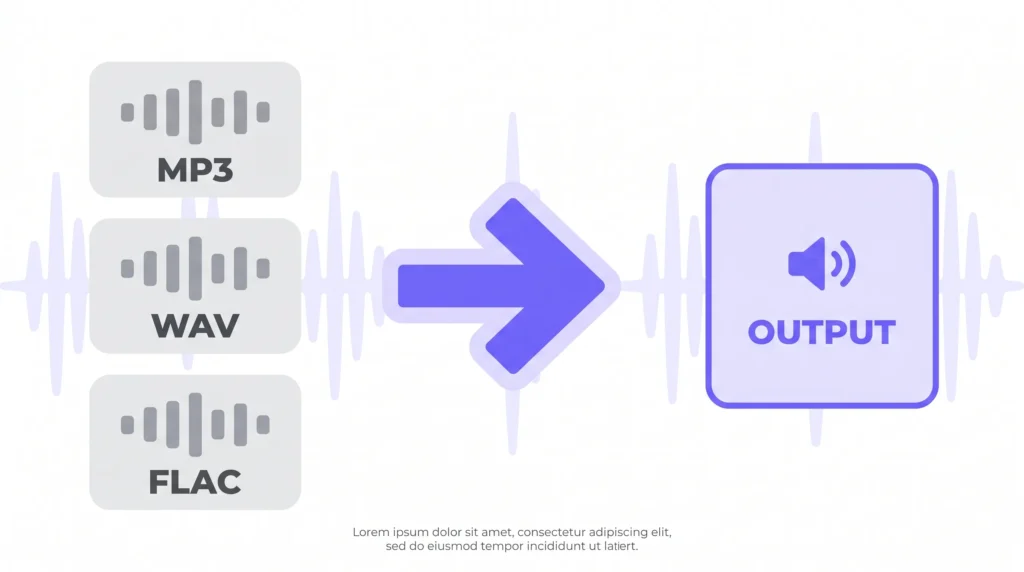
You downloaded a song and it’s in FLAC. Your car stereo only reads MP3. Or you recorded a podcast in WAV and the hosting platform wants MP3 under 50MB.
Most online audio converters make you upload your file to their server, wait in a queue, then download it back. That’s slow — and your file is now sitting on someone else’s server.
The AIToolsE free audio converter works differently. Everything happens in your browser. No file upload. No account. No waiting. And it’s completely free.
Why Audio Format Matters More Than You Think
The format your audio is saved in affects three things: file size, sound quality, and compatibility. Here’s what each format actually means:
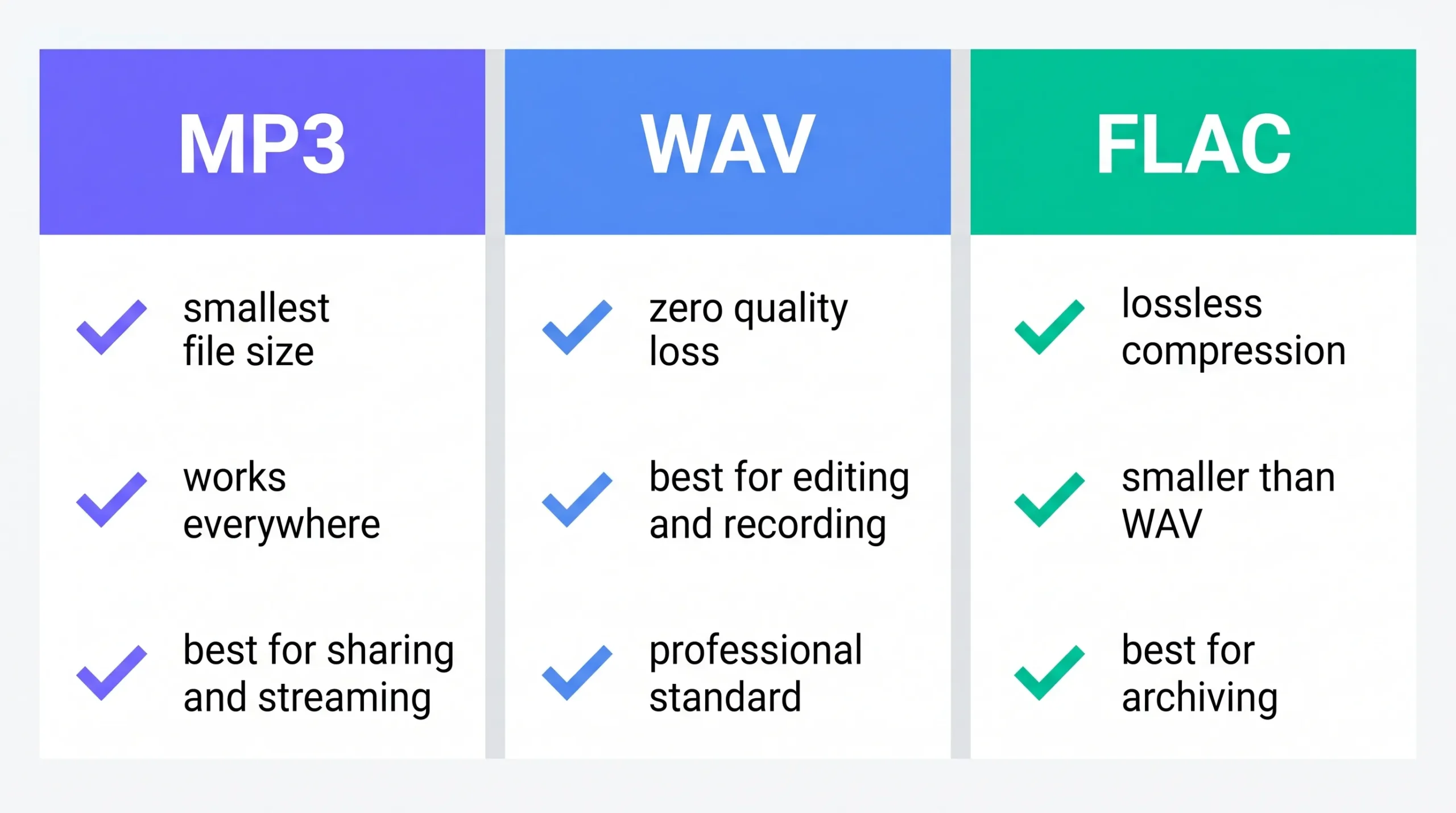
- MP3 — The most widely supported audio format. Works on every device, every platform, every app. Smaller file size, some quality is removed during compression. Perfect for music streaming, podcasts, and everyday sharing.
- WAV — Uncompressed audio. No quality loss at all. Very large file sizes. Standard in professional recording studios. Not practical for everyday sharing.
- FLAC — Lossless compressed audio. High quality like WAV but significantly smaller. Great for archiving music collections. Not supported on all older devices.
- OGG — Open-source format. Smaller than MP3 at similar quality. Used in games, apps, and some web players.
- AAC — Apple’s format. Better quality than MP3 at the same file size. Default for iTunes and iPhone recordings.
- M4A — Audio-only version of MP4. Used by Apple devices. Great quality but limited outside Apple ecosystems.
The problem most people hit: their device outputs one format, the platform they need wants another. A converter fixes that in seconds.
What the AIToolsE Audio Converter Supports
| Feature | Details |
|---|---|
| Input formats | MP3, WAV, FLAC, OGG, AAC, M4A, WMA and more |
| Output formats | MP3, WAV, FLAC, OGG and more |
| Audio trimmer | Yes — cut start and end points |
| Metadata editor | Yes — edit title, artist, album tags |
| File processing | In-browser — nothing uploaded to any server |
| Signup required | No |
| Cost | Free |
| Works on mobile | Yes |
Two features worth noting. The built-in audio trimmer lets you cut a clip without separate software. The metadata editor lets you fix the song title, artist name, and album info that shows up wrong in your music player.
How to Convert Audio — Step by Step
Step 1 — Open the tool
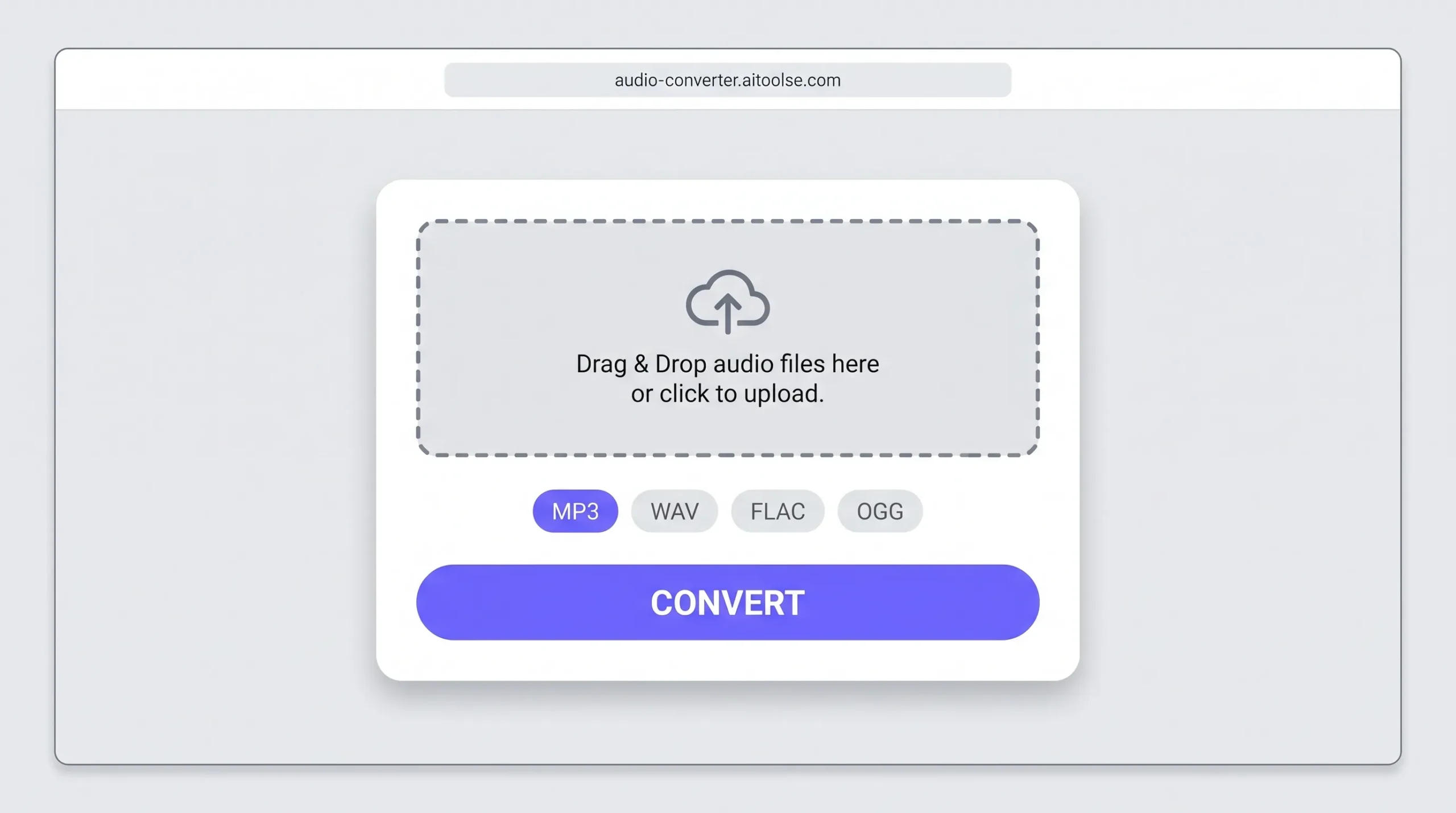
Go to audio-converter.aitoolse.com. No signup screen, no popup asking for your email.
Step 2 — Upload your audio file
Click the upload area or drag your file onto the page. The tool accepts MP3, WAV, FLAC, OGG, AAC, M4A, and other common formats.
Step 3 — Choose your output format
Select the format you need. For most uses, MP3 is the right answer. For professional editing, WAV. For archiving a music collection, FLAC.
Step 4 — Trim or edit metadata (optional)
Only need part of the audio? Set your start and end trim points. Wrong metadata in your music player? Fix the title, artist, and album info here before downloading.
Step 5 — Convert and download
Click convert. Processing runs in your browser. Click download when done. The file saves directly to your device.
When You Actually Need an Audio Converter
Your car or speaker doesn’t play FLAC
Older car stereos and Bluetooth speakers often only read MP3 from USB drives. Convert your FLAC music to MP3 and it plays everywhere.
Podcast platform rejects your file
Buzzsprout, Spotify for Podcasters, and most podcast hosts require MP3. If you recorded in WAV or M4A, convert before uploading.
Music shows wrong name in your player
Your music app shows “Unknown Artist” or the wrong track title. Edit the metadata tags before downloading — no separate app needed.
You need just one section of a recording
You recorded a 45-minute interview but only need a 3-minute clip. Use the trimmer to cut exactly what you need without opening separate editing software.
Sharing audio in chat or email
WAV and FLAC files are too large to send easily. Convert to MP3 and file size drops 70–80% with no noticeable quality difference for casual listening.
MP3 vs WAV vs FLAC — Which Format Do You Need?
Convert to MP3 when:
- Uploading a podcast to any hosting platform
- Sharing music or audio via chat, email, or social media
- Playing audio on a car stereo or older device
- Reducing file size for storage or transfer
Convert to WAV when:
- Editing audio in professional software like Audacity or Adobe Audition
- Recording vocals or instruments for music production
- You need zero quality loss for mastering or final export
Convert to FLAC when:
- Archiving your music collection at high quality
- Your music player or hi-fi system supports FLAC
- You want WAV-level quality at a smaller file size
Quick rule: Everyday use and sharing → MP3. Professional editing → WAV. High-quality archive → FLAC.
Why In-Browser Conversion Is Better for Privacy
Most free audio converters upload your file to their server, convert it there, then send it back. Your audio — whether it’s a personal recording, unreleased music, or a private interview — sits on someone else’s server during that process.
Browser-based conversion is different. Everything happens on your device. No data is transmitted. No file is stored anywhere outside your own machine.
For anything personal or private, that difference matters.
Frequently Asked Questions
Is the audio converter completely free?
Yes. No account, no trial, no file limit. Convert as many audio files as you need at no cost.
Is my audio file uploaded to a server?
No. Everything runs in your browser. Your file never leaves your device — this applies to the converter, trimmer, and metadata editor.
Does converting MP3 to WAV improve audio quality?
No. Converting from a compressed format to an uncompressed one does not restore lost quality. You get a larger file with the same audio quality as the original. Always start from the highest quality source you have.
Can I trim audio without changing the format?
Yes. Trim and download in the same format as your original file — no conversion required.
What metadata can I edit?
Title, artist name, album name, track number, and year. These are the tags that appear in music players like Apple Music, Spotify, and Windows Media Player.
Does it work on iPhone and Android?
Yes. Browser-based, works on any device with a modern browser. No app download needed.
What is the maximum file size?
No hard limit. Very large files may take longer since processing happens in your browser. For most podcasts, songs, and voice recordings, conversion is fast.
Conclusion
Format problems with audio files are annoying but they take two minutes to fix. Whether you’re converting FLAC for your car, preparing a podcast for upload, trimming a recording, or fixing wrong metadata — the right tool handles everything in your browser, privately, for free.
Convert your audio now → audio-converter.aitoolse.com